Use and download payment reports
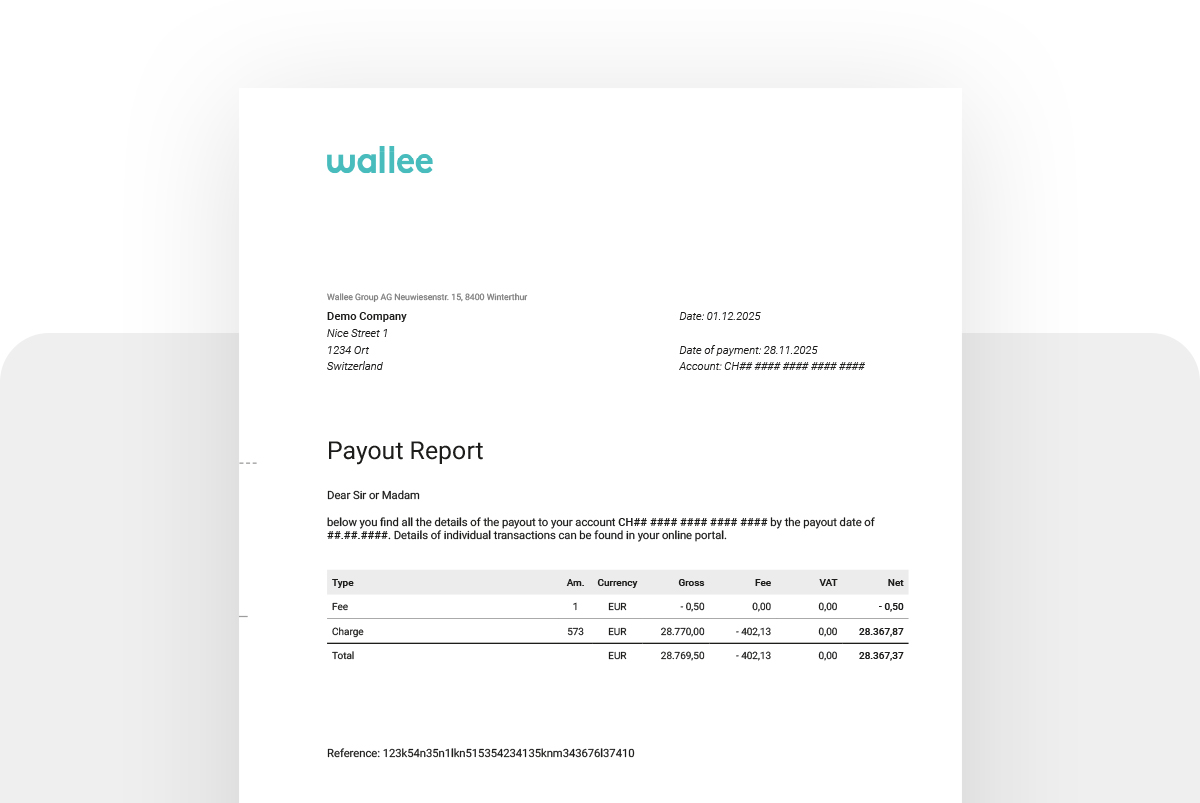
Payment reports
What's it about?
As a user of wallee All-in-One (acquiring via wallee), you receive your payouts from wallee. For your accounting and documentation, you have various options for using and downloading payout reports. In this how-to, we show you where to find current and previous payout reports, how to export the data (e.g., as PDF or CSV), and how to obtain further details on individual transactions.

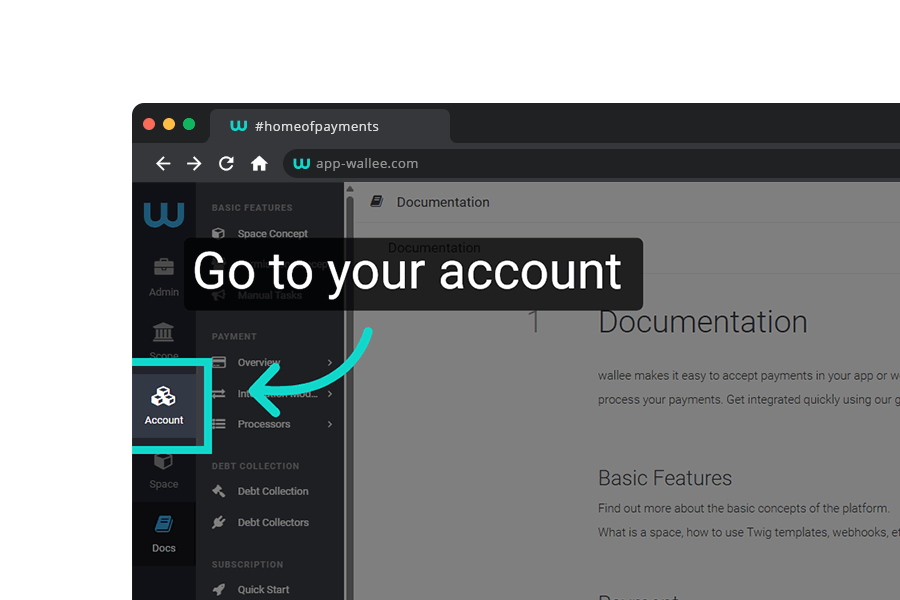
Go to your account
First, navigate to your account. If you have multiple accounts, select the one you want. You can find the payout reports in the menu under "Balances."
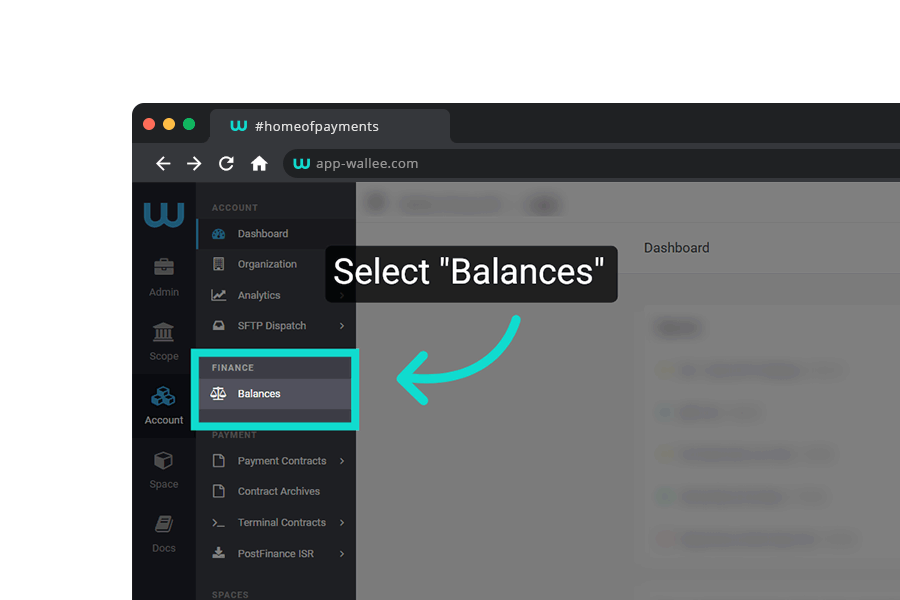
Select balance
You can find the payment reports in the menu under "Balances." If you have balances in different currencies, click on the currency balance (CHF, EUR, etc.) for which you want to view the payment reports.
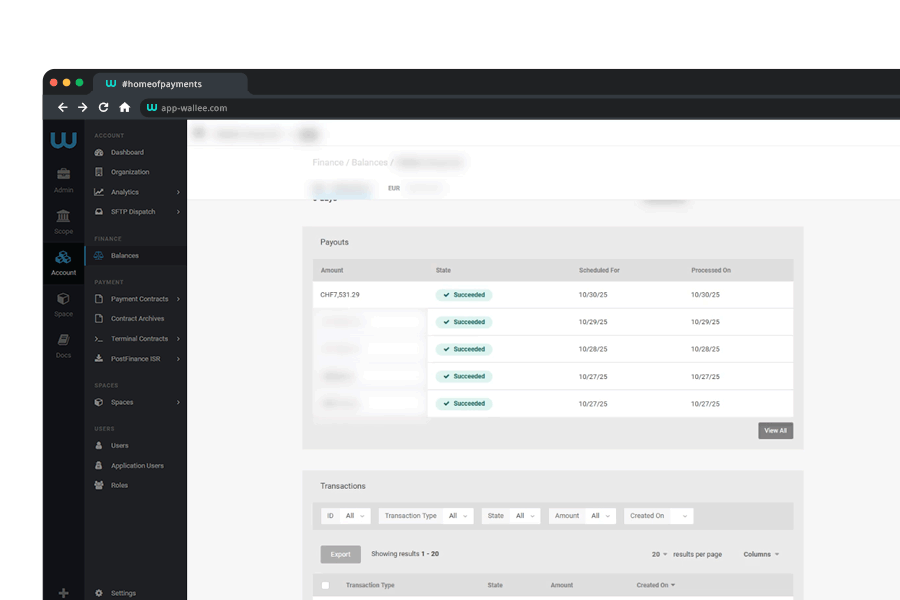
Overview of the balance
On this page, you will now see an overview of your balance in the selected currency. The Withdrawals section shows the last five entries with the amount, status, and execution date. For more details, click on an entry or on the "Show all" button at the bottom right for a complete list.
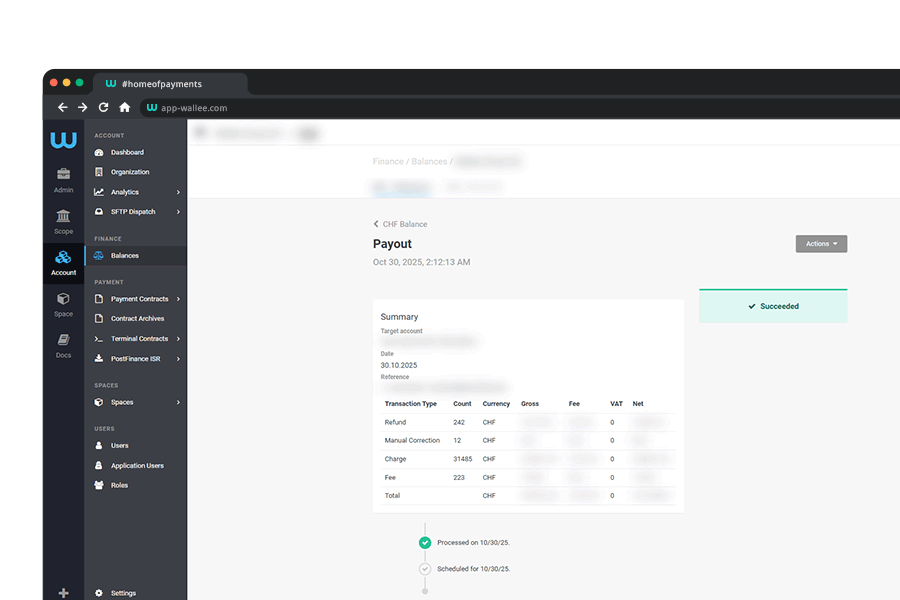
Your payout in detail
On this page, you can now view all the details of your payout, such as the payout account, reference number, and execution date, as well as a detailed breakdown of the items (including fees, refunds, or credits). The status indicates whether the payout has already been made.
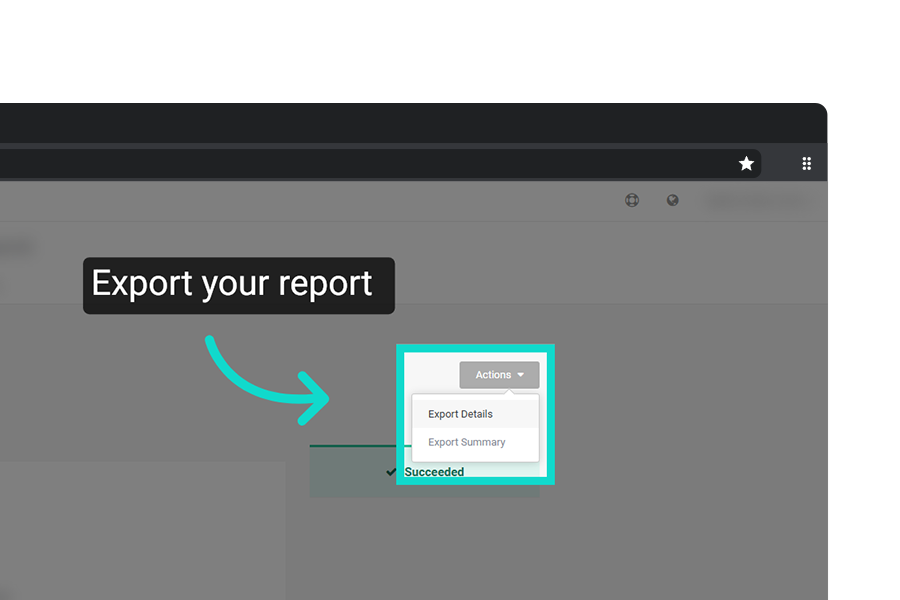
Export payment report
Of course, you can also conveniently export the payout report. There are two options available for this:
Export details Comprehensive list of all data as CSV
Export summary Overview as PDF
